This article was originally published on 2022-05-28 and migrated here from an old blog. Compiled by: Hermes
Windows Cat Recycle Bin Customization Tutorial
Want to turn the Windows Recycle Bin icon into an adorable cat? Here are the detailed steps.
Preparation
Download the cat icon files (choose one format):
| Format | Closed Mouth Icon | Open Mouth Icon |
|---|---|---|
| ICO | Closed Mouth.ico | Open Mouth.ico |
| DLL | Closed Mouth.dll | Open Mouth.dll |
💡 Recommendation: It is recommended to use the DLL format for better compatibility.
Operation Step Screenshots:
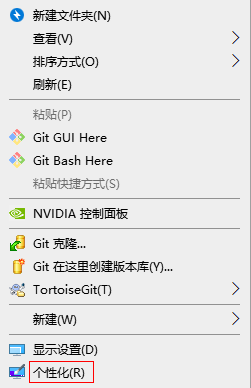
Step 1 - Personalization Settings
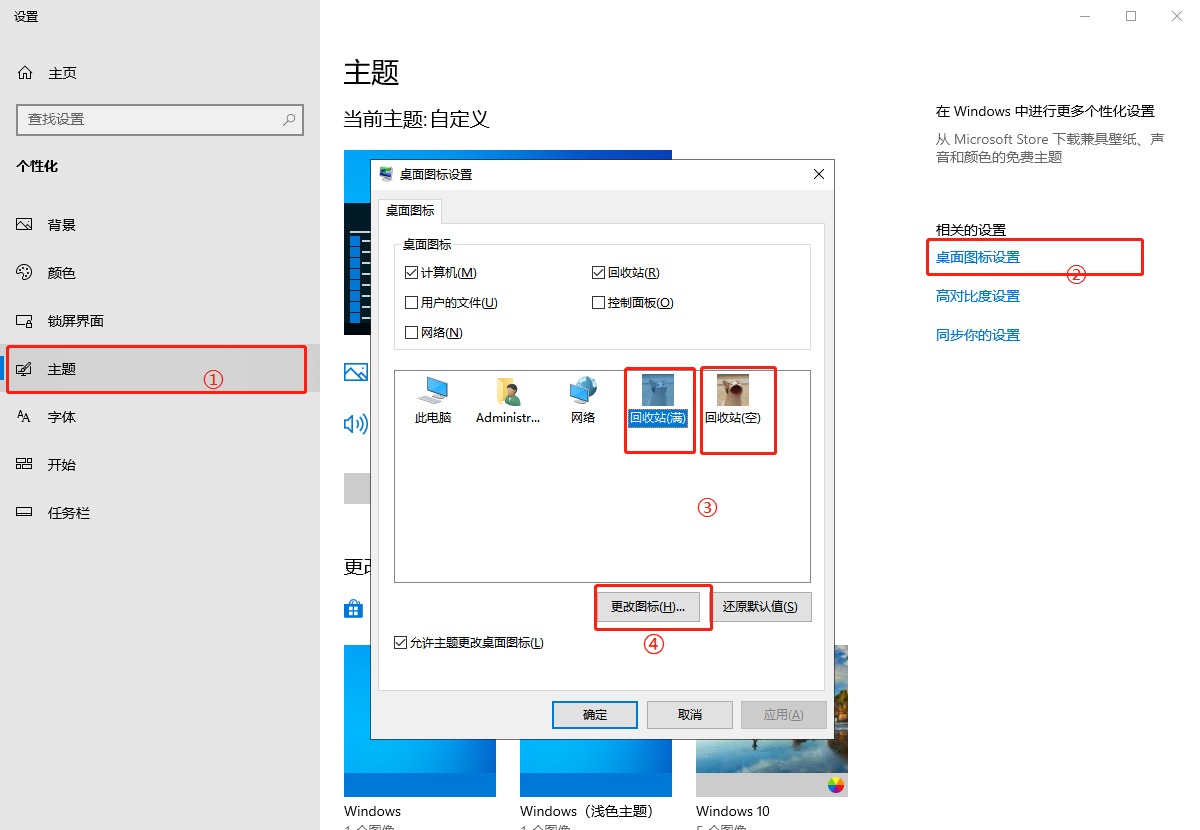
Step 2 - Desktop Icon Settings
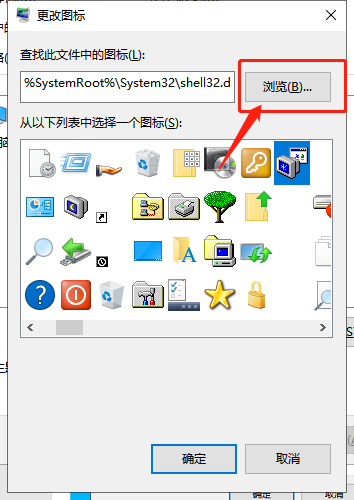
Step 3 - Change Icon
Setup Steps
Step 1: Open Personalization Settings
- Right-click on an empty area of the desktop.
- Select [Personalize].
Step 2: Enter Theme Settings
- Click [Themes] in the left-hand menu.
- On the right-side page, find and click [Desktop icon settings].
Step 3: Change the Recycle Bin Icon
- In the Desktop Icon Settings window, select [Recycle Bin (Full)].
- Click the [Change Icon] button at the bottom.
- Browse and select the downloaded cat icon file.
- Click [OK] to save.
Step 4: Set the Empty Recycle Bin Icon (Optional)
Repeat the above steps to set a cat icon for [Recycle Bin (Empty)] as well.
Final Result
After completing the settings, your Recycle Bin will display an adorable cat icon!
Frequently Asked Questions
Q: The icon is not displaying?
- Ensure the icon file format is correct (.ico or .dll).
- Try restarting File Explorer or logging out and back in.
Q: How to restore default icons?
- Simply click [Restore Defaults] in the Desktop Icon Settings.
Compiled by: Hermes